Drone Remote Controller
- 4.1
- Rating
- 10.00K
- Installs
- Free
- Price
 Analysis by App-foxy
Using a phone as a drone controller sounds convenient, but convenience only matters when the connection, controls, and user choices feel dependable. I approached Drone Remote Controller from that practical angle rather than treating it as a novelty. It is a free Android app from DTFHM in the Libraries & Demo category, designed around one clear purpose: turning a compatible phone into a remote for a drone.
That narrow purpose is both its appeal and its main limitation. You are not downloading a general drone-learning suite or a social flying platform. You are getting a focused controller app, currently at version 10.0, with an Everyone age rating. Its public reception is reasonably encouraging, with a 4.1 average from roughly two hundred and fifty ratings and more than ten thousand installs. Those figures suggest that people are trying it in real situations, while also leaving enough room for individual hardware compatibility to matter.
What it feels like to trust a phone as the controller
My first reaction to an app like this is cautious optimism. A phone is already something I carry, charge, and understand, so replacing a separate controller can make a quick flight easier. On the other hand, a drone remote is not merely another screen. It is the part of the setup that must respond predictably while the aircraft is moving, and a phone introduces distractions that a dedicated transmitter does not.
You May Also Like

 Pandora - Music & Podcasts
Pandora’s Music Is Easy to Start, but Harder to Recover
Pandora’s strength is its low-effort path from a seed to a station. Its weak spot is how much confidence it asks you to place in connection, setup, and quiet recovery.

 8 Ball Pool
 Is Built on Rivalries, Rematches, and Routine
A close look at the rivalries, rematches, shared routines, and unanswered safety questions that turn a quick pool match into a persistent mobile community.

 Samsung Music
’s Quiet Strength Is Playing What You Already Own
Its reach comes less from spectacle than from dependable access to a personal library. That simplicity is both the app’s strongest retention engine and its ceiling.

 AccuWeather: Weather Radar
AccuWeather Review: A Quick, Clear Forecast for Everyday Decisions
For everyday plans, the best forecast is the one you can understand quickly. AccuWeather makes rain timing, radar, and local conditions easy to act on, with a few trade-offs.

 Hill Climb Racing
Why Hill Climb Racing Still Turns Crashes Into One More Run
A tiny car, a bumpy hill and one more upgrade: Hill Climb Racing keeps resurfacing because its simple chaos makes every near-miss feel personal.

 AliExpress - Shopping App
AliExpress Makes Global Shopping Feel Personal, but Shoppers Bear the Risk
AliExpress turns a global marketplace into a pocket-sized discovery engine. Its reach is useful, its shopping loop compelling, and its trade-offs easy to miss.
More From Our News Desk
View All News


That makes the developer’s role important. DTFHM presents this as a straightforward utility rather than an app that needs a complicated account-based ecosystem. The simpler the purpose, the easier it is for me to judge whether the app is doing what I need: opening cleanly, exposing the relevant controls, and allowing me to decide when it should be used.
The app was released on May 19, 2023, and supports Android 7.0 or later. That broad system requirement is useful if you have an older spare phone you want to use for flying, although age alone does not guarantee that a particular device will communicate correctly with a particular drone. I would treat compatibility as something to test before relying on the app outdoors, not something to assume from the Android requirement.
The most important trust question is not whether a phone can display controller buttons; it is whether the whole setup remains understandable when something goes wrong. If the drone is not detected, if the connection drops, or if the controls feel unfamiliar, I want an obvious path back to safety. A dedicated remote may be the better choice for demanding flights, while this app makes more sense for casual use, experimentation, or carrying less equipment.
Permissions and visible choices deserve attention
When I review a controller app, I do not want to guess about its privacy behavior. The relevant questions are practical: what does the app ask the phone to access, why would that access be needed, and can I decline anything unrelated to controlling the drone? I would check the Android permission prompts carefully during installation and first launch, especially if the app requests access that does not seem connected to the connection method used by the drone.
I also recommend reading every prompt instead of tapping through automatically. A phone-based controller may need a system connection or nearby-device interaction, depending on the hardware and Android version, but the exact request should still be understandable at the moment it appears. If a permission feels unrelated to flying, I would deny it first and see whether the core controller remains usable.
This is where the app’s focused identity helps. There is less reason for a simple drone remote to need a social profile, public posting workflow, or a separate account just to reach its controls. I would still inspect the opening screens for sign-in requests, optional notices, or settings that affect connectivity. If the app lets me reach the controller without handing over unnecessary personal details, that is a meaningful advantage over more elaborate alternatives.
For a family member or a child using the phone, the Everyone rating is reassuring as a content classification, but it should not be confused with flight supervision. The age label describes the app’s content suitability, not whether a young pilot understands safe distances, obstacles, battery limits, or local rules. I would set up the connection myself, explain the controls, and keep the first test in a clear, controlled area.
A sensible setup routine before the first flight
I would begin with a spare or secondary phone if possible. That keeps incoming calls, navigation alerts, and personal notifications away from the controller screen. It also gives me a chance to test the app without risking my main phone’s battery during an outing. Before launching the drone, I would close demanding apps, disable anything likely to interrupt the display, and make sure the phone has enough charge for both the controller and a safe return.
The next step is a short indoor or low-risk connection check, with the drone secured and its propellers treated seriously. I would open the app, follow the exact connection sequence recommended for the aircraft, and move each control gently rather than assuming the layout behaves like a familiar physical remote. This is one of the less obvious trade-offs: a touchscreen can be convenient, but there is no tactile center position to find with a thumb.
I would also rotate the phone only if the app clearly supports that orientation and keep the screen brightness high enough to read without squinting. Glare can make a virtual control look like it has not moved when it actually has. A simple phone case with raised edges may help grip, but a bulky case can interfere with how comfortably you reach the controls. Small physical details can affect confidence more than the app description suggests.
For a realistic everyday example, imagine taking a small drone to a park for a brief test after work. With a dedicated remote, you may carry one more item; with this app, you already have the screen in your pocket. I would first connect beside the car, confirm that the controls respond while the drone stays grounded, and only then move to an open area. If the phone receives a call or the display locks, I would end the session rather than improvising mid-flight.
Where phone control is genuinely useful
The strongest use case is convenience. If you fly infrequently and dislike carrying a separate transmitter for a short session, a phone-based controller can reduce the amount of equipment you need to remember. It is also useful as a backup experiment when the original remote is unavailable, provided the drone and app combination actually communicate correctly.
It may suit beginners who want to understand the basic relationship between on-screen input and aircraft movement. A touchscreen can make the controls visually approachable, and the phone is a familiar object. That does not make it automatically easier for everyone, though. Some beginners learn faster from physical sticks because their fingers can stay on the controls without looking down.
I would be more comfortable recommending it for calm, uncomplicated flights than for situations where precision is the priority. A quick inspection of a garden, a short practice session, or a supervised demonstration fits the app’s focused concept. Fast movement near obstacles, windy conditions, or a flight where you cannot afford a delayed reaction calls for more specialized equipment.
Another useful scenario is testing whether you actually enjoy drone flying before investing in accessories. Since the app is free, it lowers the cost of trying a phone-based workflow. The important qualification is that free does not remove the need to verify compatibility or safe operation. I would not buy a drone solely because a generic controller app exists; I would confirm that the aircraft is intended to work with this kind of control method.
How it compares with the usual alternatives
The natural alternative is the drone’s dedicated remote. That option usually wins for grip, tactile feedback, and keeping your attention on the aircraft instead of the screen. A physical controller can be easier to operate without looking down, and its controls are less vulnerable to accidental touches from notifications or the edges of a case.
Drone Remote Controller wins on portability and familiarity. I already know how to wake a phone, adjust its brightness, and read its display. If I am only doing a short, low-pressure flight, not carrying another device can be a real benefit. The compromise is that the phone becomes both the interface and a potential source of interruption.
Another alternative is the manufacturer’s official companion app, when one exists for the drone. That kind of app may be a better choice if you need model-specific setup, firmware handling, camera tools, flight records, or detailed safety information. I would choose the official option for a serious ownership workflow and consider this app when the goal is specifically remote control and the hardware is compatible.
Generic controller apps can also be less predictable than a dedicated solution because drones do not all use the same communication method or control layout. I would avoid treating a successful installation as proof that the aircraft will work. The correct test is a controlled connection with the drone secured, followed by gentle input checks and a clear plan for disconnecting.
Data-sensitive moments during real use
A drone controller can become privacy-sensitive even when the app itself feels simple. The phone may be used outdoors, around other people, and near homes or private property. That makes my behavior as the pilot just as important as the app interface. I would avoid recording or flying over people without a clear reason and would check local rules before using the drone beyond a basic test.
I would also separate controller use from unrelated personal activity. A spare device reduces the chance that messages, photos, contacts, or work notifications appear while I am flying. It is a small workflow change, but it gives me better control over what is visible on the screen and what the app session can expose through interruptions.
Before granting any permission, I would look for an explanation in the Android prompt or the app’s settings. If the app offers optional choices, I would keep the minimum needed for the controller and revisit the decision later. This is not about assuming bad intent; it is about making the phone’s access understandable instead of allowing every request by habit.
I would be especially careful when handing the phone to someone else. The controller screen may be easy to reach, but the device may also contain private notifications or saved accounts. A guest mode, screen pinning, or a separate user profile on Android can help protect the rest of the phone, where those features are available on the device. That is a practical privacy step independent of the app itself.
Small habits that improve control and agency
One of my preferred habits is to create a repeatable preflight order: charge the phone, remove distractions, open the controller, establish the connection, test the inputs while grounded, and only then launch. Repeating the same sequence makes it easier to notice when a permission, connection state, or screen behavior differs from normal.
I would keep the first flights short and stay close enough to land without depending on a complicated recovery. If the controls feel inverted, too sensitive, or difficult to read, I would stop and adjust before continuing. Do not use the first outdoor flight to discover whether you can operate the interface one-handed or in bright sunlight.
Another useful tip is to avoid placing the phone where a notification can cover the control area. Even if the controller continues running, a banner or incoming call can steal attention at the worst time. Airplane mode may reduce interruptions, but I would only use it after confirming that the drone’s connection method still works with the phone’s necessary wireless functions enabled.
I would also keep the original remote nearby whenever practical. That is not a criticism of the app; it is sensible redundancy. If the phone battery falls, the touchscreen becomes unreadable, or the connection behaves unexpectedly, a dedicated controller may provide a faster way to regain control. For a casual test, that extra precaution costs less than recovering a drone from an avoidable mistake.
Who should choose it, and who should skip it?
I can see this app working well for an Android user who owns compatible drone hardware, wants a free way to try phone control, and values carrying fewer devices. It is also a reasonable option for supervised beginners, short practice sessions, and people who want a straightforward controller rather than a large collection of drone-related tools.
I would hesitate to recommend it as the only control method for professional work, valuable equipment, crowded locations, or flights that demand precise tactile input. I would also skip it if you strongly prefer physical sticks, need advanced model-specific functions, or do not want to troubleshoot compatibility between a generic controller and your aircraft.
The version 10.0 label shows that the app is not presented as an untouched first experiment, and its install base indicates that it has reached more than a small handful of curious users. Still, neither fact replaces a careful test with your own phone and drone. Hardware combinations, Android behavior, and connection expectations can differ, so I would judge it by a grounded trial rather than by the number of people who have installed it.
My cautious verdict
Drone Remote Controller is appealing because it keeps its promise focused: use an Android phone as a drone controller. I like the free entry point, the familiar screen, and the possibility of leaving a separate remote at home for simple flights. DTFHM’s app belongs on the shortlist for experimentation and convenience, especially when the user is willing to verify compatibility and build a careful setup routine.
My recommendation comes with a clear boundary. Treat it as a practical phone-based option, not as an automatic replacement for a dedicated transmitter in every situation. Check permissions as they appear, keep personal distractions away from the flight device, test the controls while the drone is secured, and preserve a backup plan until the combination proves reliable.
For a relaxed backyard test or a supervised introduction to drone control, I think the app is worth trying. For demanding flying, I would choose the manufacturer’s official tools or a physical remote whenever those provide better feedback and model-specific control. That balance is the fairest way to use this app: appreciate its portability, respect its limits, and keep the pilot’s judgment in charge.
FAQs for Drone Remote Controller
01What devices are compatible with the Drone Remote Controller app?
The Drone Remote Controller app is compatible with most Android and iOS devices. For Android, it requires version 6.0 and above, and for iOS, version 11.0 or later is needed. It is recommended to check your device's specifications to ensure optimal performance while using the app.
02How do I connect my drone to the Drone Remote Controller app?
To connect your drone, ensure Bluetooth or Wi-Fi is activated on your device. Launch the app, and it will automatically search for nearby drones. Select your drone model from the list to establish a connection. Ensure your drone is powered on and within a reasonable distance for a successful link.
03Are there in-app purchases or subscriptions in the Drone Remote Controller app?
The Drone Remote Controller app offers some features for free, but advanced functionalities may require in-app purchases or a subscription. These include enhanced control settings, live streaming capabilities, and advanced flight modes. Review the app’s pricing details before making any purchases to understand what fits your needs.
04What are the main features of the Drone Remote Controller app?
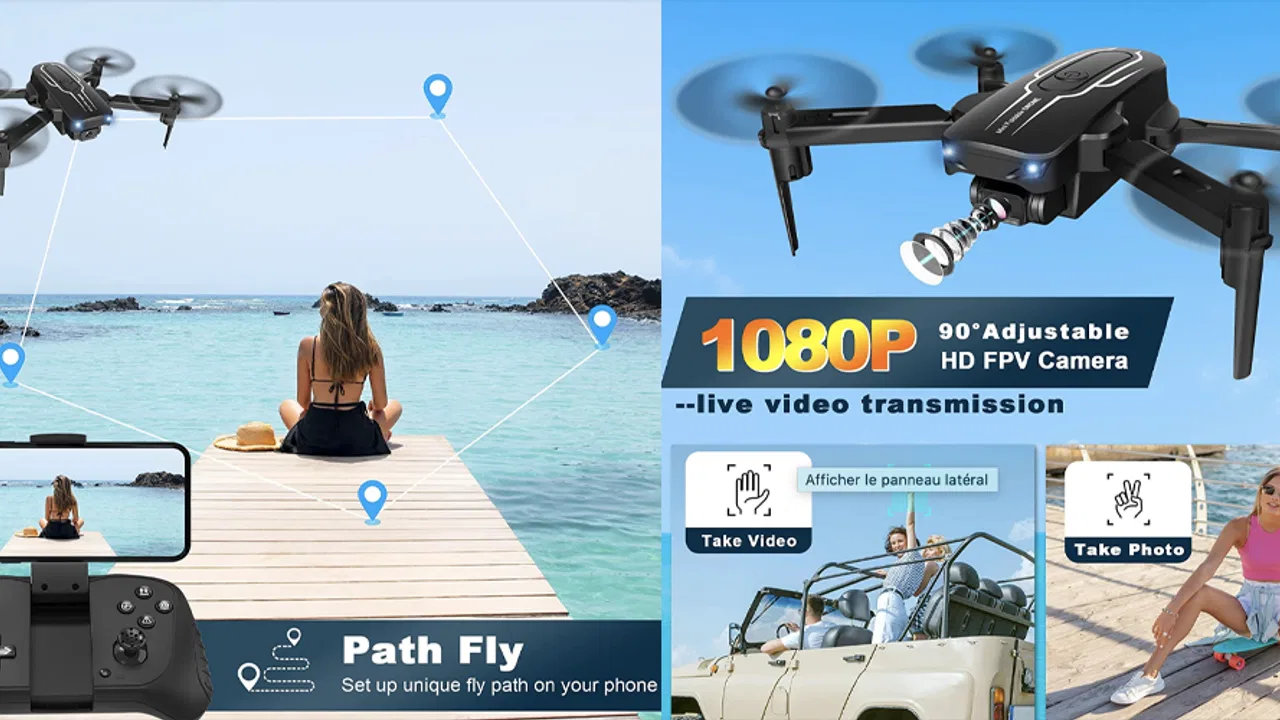
The app offers features such as real-time video streaming, waypoint navigation, customizable control settings, and various flight modes like Follow Me and Orbit. It also provides a user-friendly interface for easy navigation and control, ensuring both beginners and experienced users can efficiently operate their drones.
05Is the Drone Remote Controller app safe to use with all drone models?
While the app is designed to work with a wide range of drone models, it is crucial to ensure compatibility with your specific drone. Check the manufacturer’s website or contact customer support for verification. Always follow safety guidelines and local regulations when flying your drone using this app.
Pros
- Easy-to-use interface for beginners.
- Compatible with multiple drone models.
- Real-time camera feed available.
- Customizable control settings.
- Low-latency performance.
Cons
- Limited compatibility with older devices.
- Requires frequent app updates.
- GPS features may drain battery.
- Occasional connectivity issues.
- Advanced features can be confusing.

Drone Remote Controller
Gallery